Exploring the Linux Filesystem: A Map-Inspired Overview
If you're new to Linux, opening the terminal and running ls / can feel like stepping into a maze. Learn what /bin, /etc, /home, /var, /usr and other directories mean.
If you’re new to Linux, opening the terminal and running ls / can feel like
stepping into a maze. There’s a /bin, /etc, /home, /var, /usr — but
what do these mysterious folders mean?
The Linux filesystem is organized like a tree. Once you understand its structure, navigating Linux becomes simple and logical. In this guide, we’ll explore what lives where, why it’s structured this way, and how you can find what you need quickly.
The Filesystem Tree
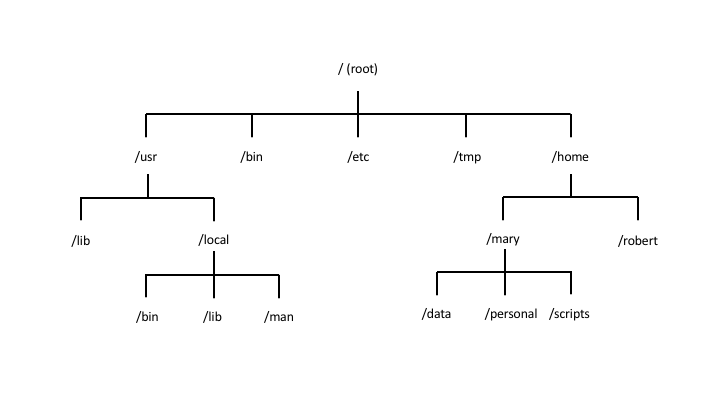
Linux uses a single-root directory structure. Everything starts at /
(root). All files, programs, devices, and even drives are located under this
root.
Key Directories and Their Purpose
| Directory | What It Stores | More Info |
|---|---|---|
/bin |
Core commands (ls, cp, cat) |
Essential for system boot and repair. Avoid removing or altering. |
/boot |
Bootloader files, kernel, boot configs | Contains everything needed to start your OS. Critical for system startup. |
/dev |
Devices represented as files (/dev/sda) |
Lets you access and control hardware using standard file operations. |
/etc |
System and application configuration files | Editing these changes how your system and services behave. |
/home |
User directories and personal files | Where each user’s documents, configs, and files are stored. |
/lib |
System libraries and kernel modules | Required by essential binaries to run properly. |
/media |
Mount points for removable drives | External devices (USB, CD/DVD) auto-mount here. |
/root |
Root user’s home directory | Personal directory for the system administrator. |
/sbin |
System binaries and admin commands | Tools for managing the system, typically run by root. |
/tmp |
Temporary files and caches | Automatically cleared at reboot. Useful for temporary data. |
/usr |
User-installed software, docs, libraries | Most programs and system-wide files live here. |
/var |
Logs, spool files, caches | Essential for debugging, monitoring, and queues. |
Challenge: Navigate and Explore Your Linux Filesystem
If you haven’t set up Linux in WSL2 yet, start with Part 1: Installing Linux on WSL2 so you can follow along.
Once you’re ready, open your terminal and try these steps:
1. See the Root of Your System
ls /2. Peek Inside Key Folders
cd /bin && ls
cd /etc && ls
cd /var && ls
cd /home && ls
You should notice how:
/binis full of executable files (commands)/etchas configuration files/homemay only show your username/varhas subdirectories likelogorcache
3. Check Directory Details
ls -lh /- This shows file sizes, permissions, and ownership
- Question: Which folders are owned by
root? Which ones are writable?
4. Find Where You Are
pwdpwd(“print working directory”) shows your current location- Move around using
cdand observe howpwdchanges
Reflection
- Which directory looks most important for system configuration?
- Which one seems meant for users like you?
- Did you find any folders that are empty?
The goal here is to get comfortable moving around and start recognizing patterns. Keep exploring step by step — Linux mastery is closer than you think!
Up Next: Understanding Permissions
Ready to learn about file permissions and ownership? Head to the next article: