Step-by-Step Guide to Handling Processes and Jobs in Linux
Every program you run becomes a process. Learn to inspect, control, and manage processes and jobs — from ps and kill to background jobs.
When you run a program in Linux, it becomes a process — a living entity
inside the operating system with its own ID, state, and resources.
Whether you’re compiling code, running a web server, or streaming music, Linux
is quietly juggling dozens (or thousands) of processes at once.
As a developer, DevOps engineer, or sysadmin, mastering process management is essential. You’ll need to:
-
Run jobs in the background while you keep working
-
Pause, resume, and terminate processes safely
-
Monitor CPU, memory, and system load in real-time
-
Limit resources and set priorities
-
Keep important jobs alive after logout
-
Schedule recurring tasks with
cron -
Debug stuck or misbehaving processes
This guide will walk you from the basics of jobs in your shell to the advanced topics of daemonization, scheduling, and resource control — with hands-on exercises so you can practice along the way.
Understanding Processes
-
Every running program = process
-
Identified by a PID (process ID)
-
Has a parent (PPID), state, and resources (CPU, memory, files, sockets)
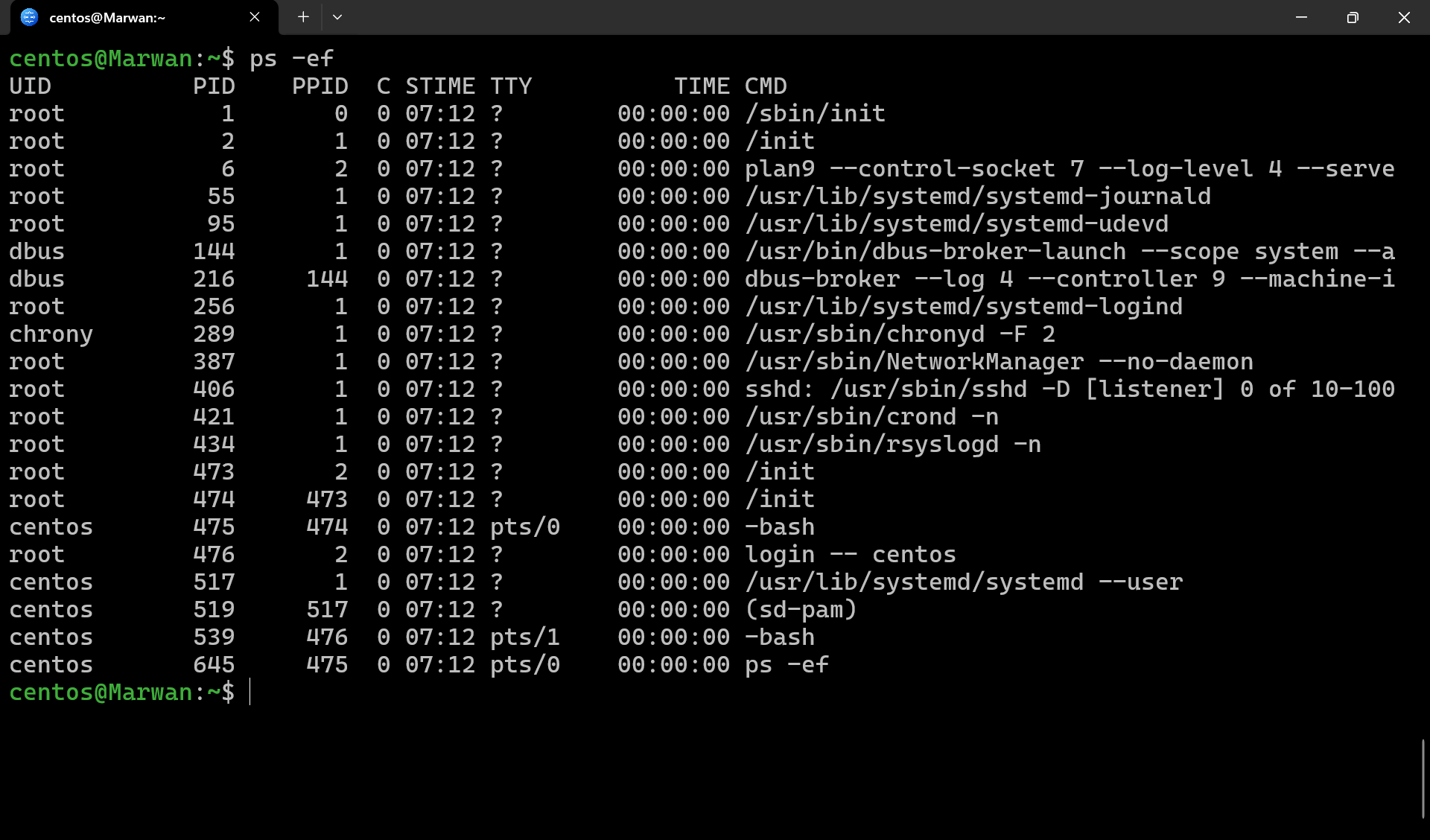
Check running processes:
ps aux
ps -ef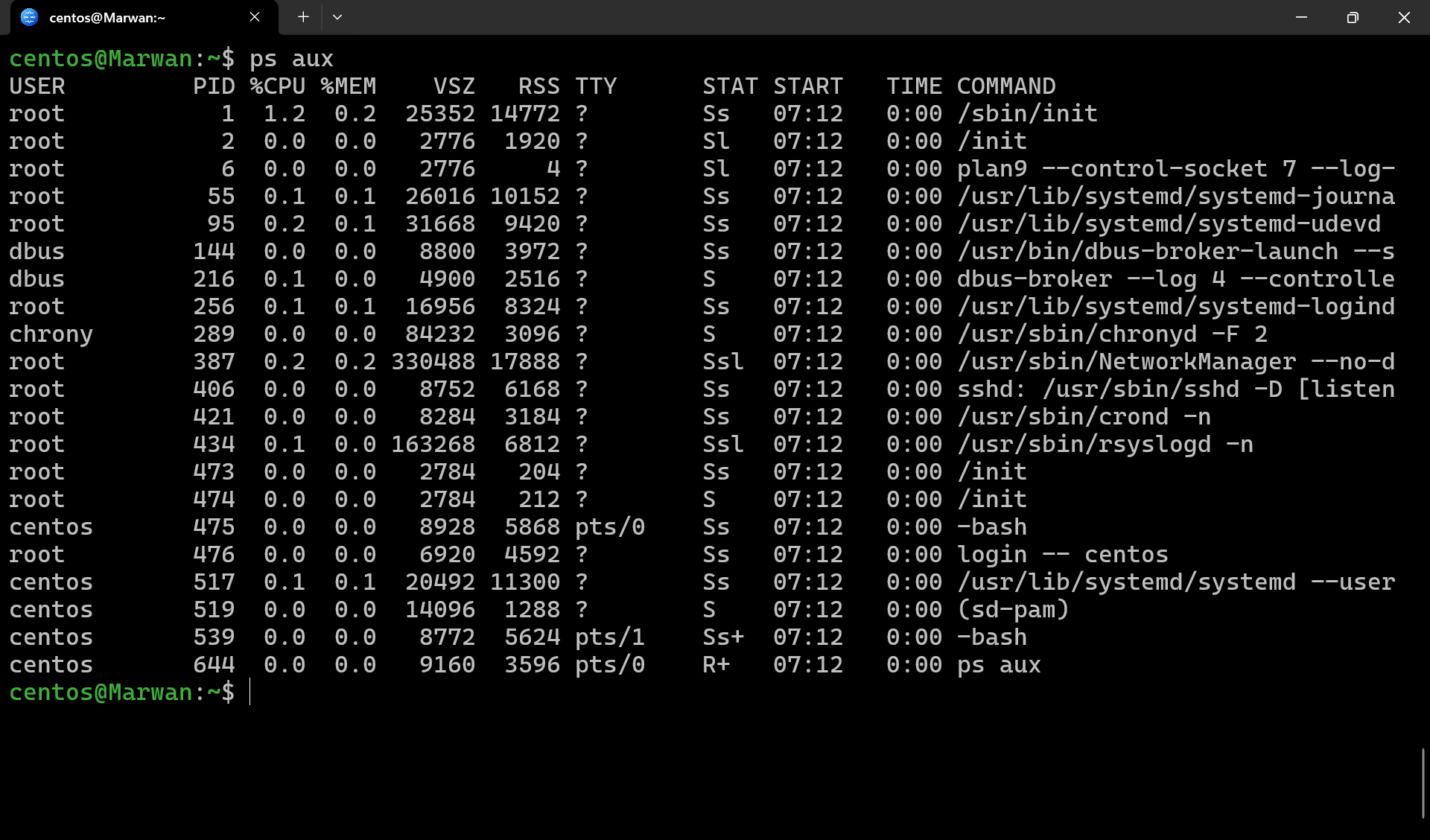
Jobs vs Processes
-
Job → process started from your shell (
%1,%2, …) -
Process → system-wide, identified by PID
List jobs :
jobsForeground & Background Jobs
| Command / Keys | Action |
|---|---|
command |
Run in foreground |
command & |
Run in background |
Ctrl+Z |
Suspend foreground job |
bg %n |
Resume in background |
fg %n |
Resume in foreground |
jobs |
Show jobs |
disown %n |
Detach from shell |
Signals & Process Control
Linux uses signals to control processes.
| Signal | Num | Meaning | Use |
|---|---|---|---|
SIGHUP |
1 | Hangup | Reload configs |
SIGINT |
2 | Interrupt | Ctrl+C |
SIGQUIT |
3 | Quit + core dump | Debugging |
SIGKILL |
9 | Kill immediately | Cannot be caught |
SIGTERM |
15 | Terminate | Graceful exit |
SIGSTOP |
19 | Stop | Pause process |
SIGCONT |
18 | Continue | Resume process |
SIGTSTP |
20 | Stop (terminal) | Ctrl+Z |
Send signals:
kill -TERM <pid>
kill -KILL <pid>
Process States
| Code | State | Meaning |
|---|---|---|
| R | Running | Using CPU |
| S | Sleeping | Waiting for event |
| T | Stopped | Suspended |
| Z | Zombie | Finished, not cleaned |
| D | Uninterruptible | Waiting on I/O |
Monitoring & Inspecting Processes
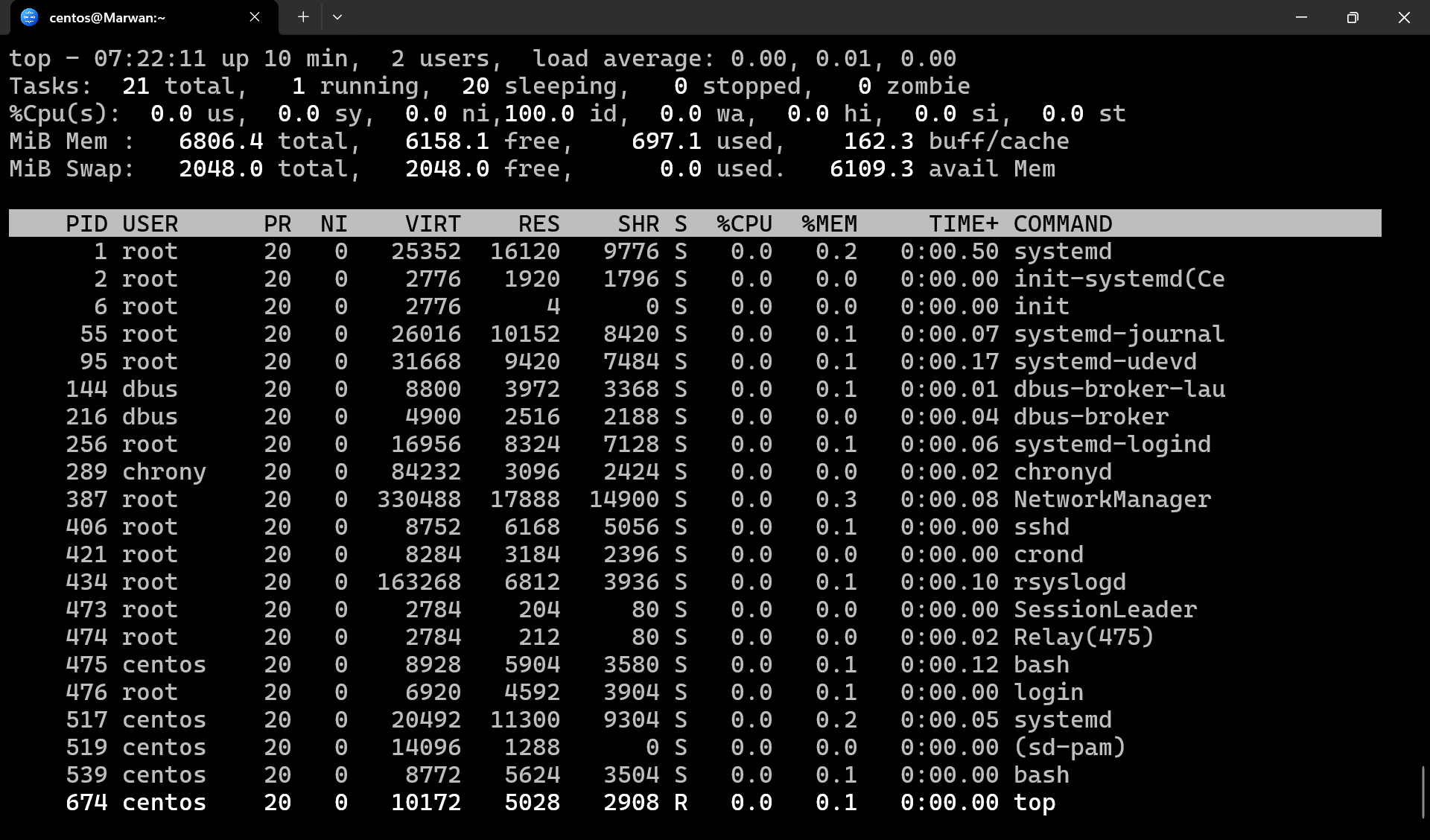
top/htop→ CPU & memory usage
-
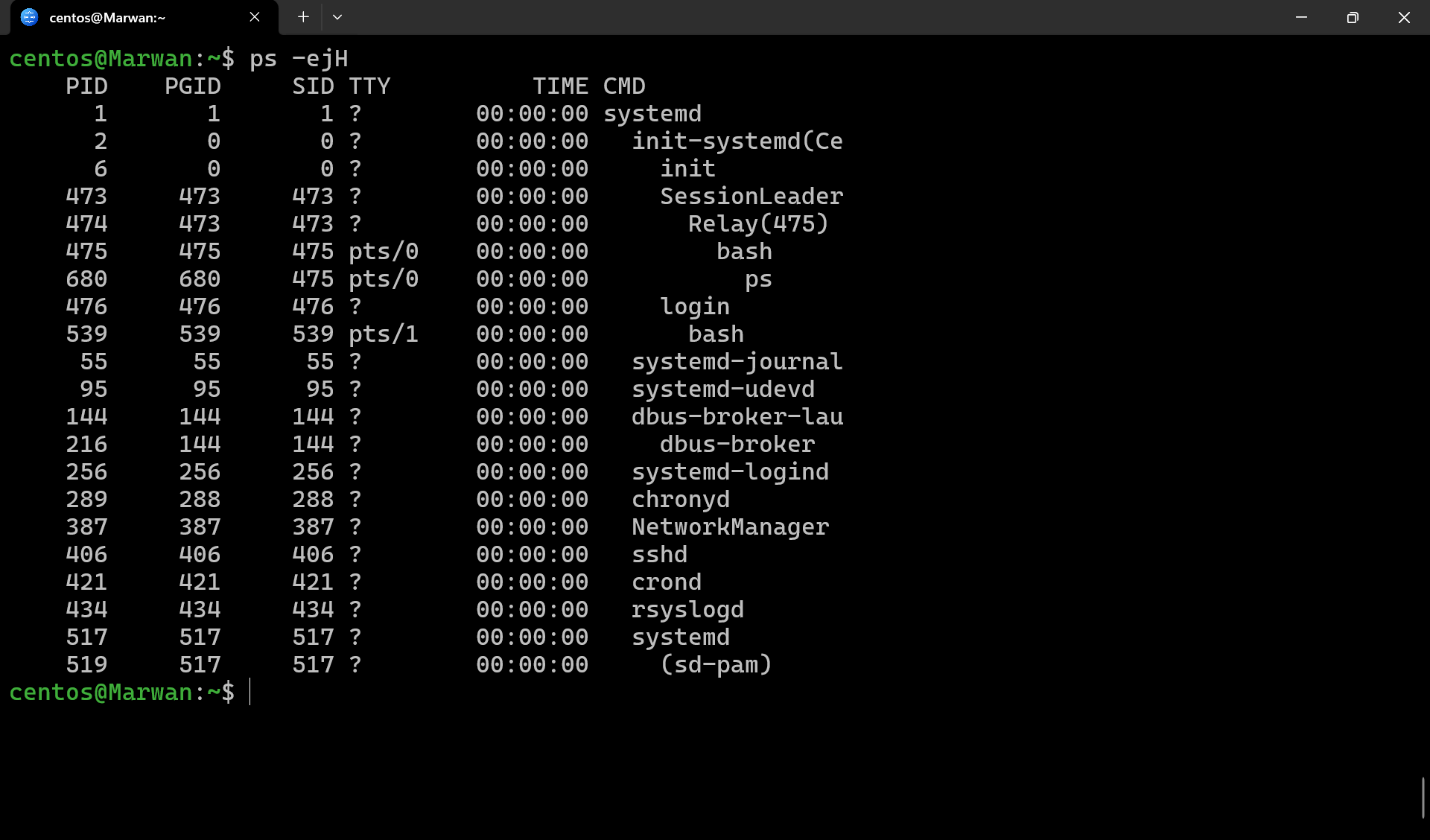
ps -ejH→ process tree -
-
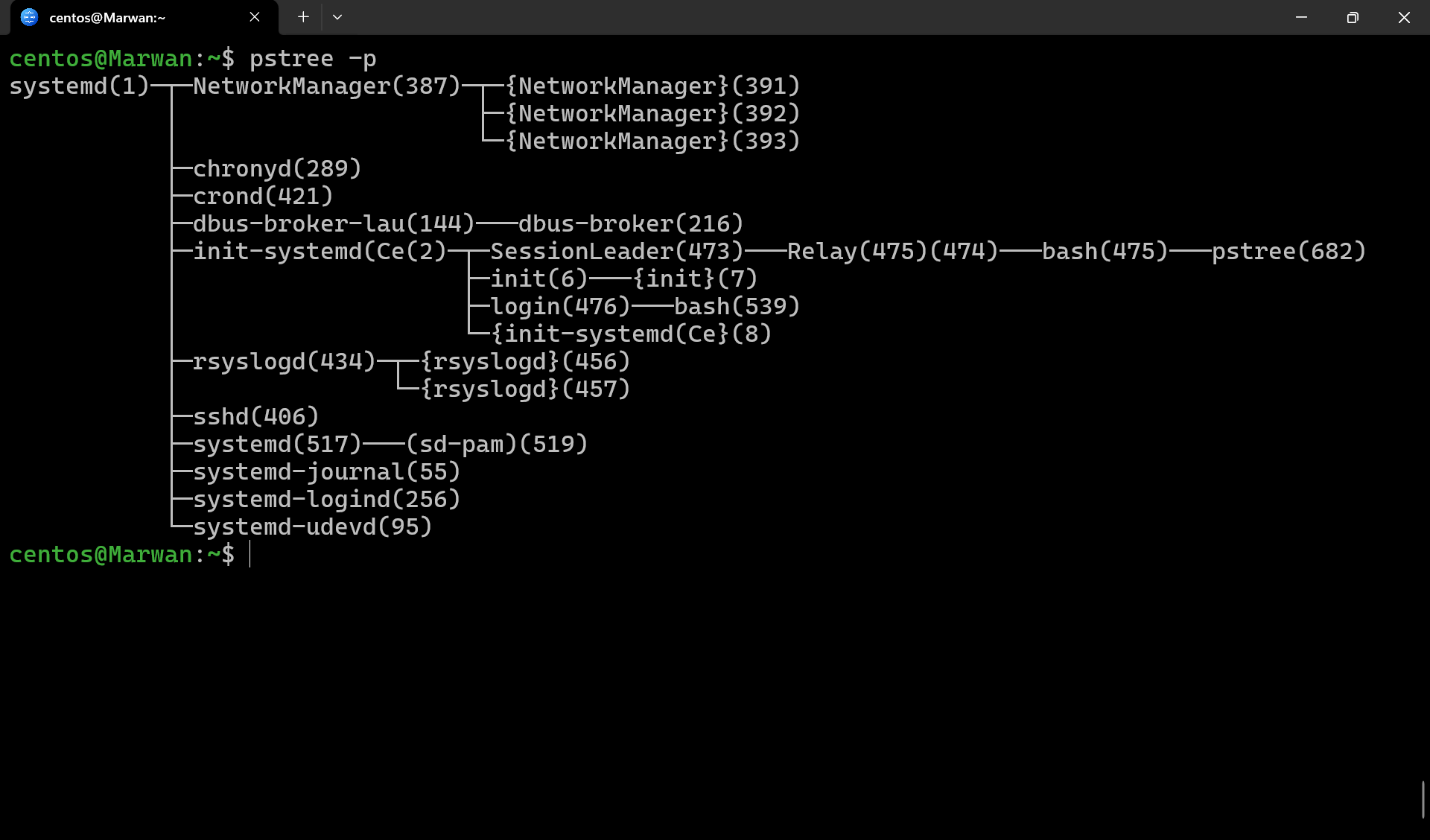
pstree -p→ tree view
-
watch -n 2 ps aux | grep python→ auto-refresh -
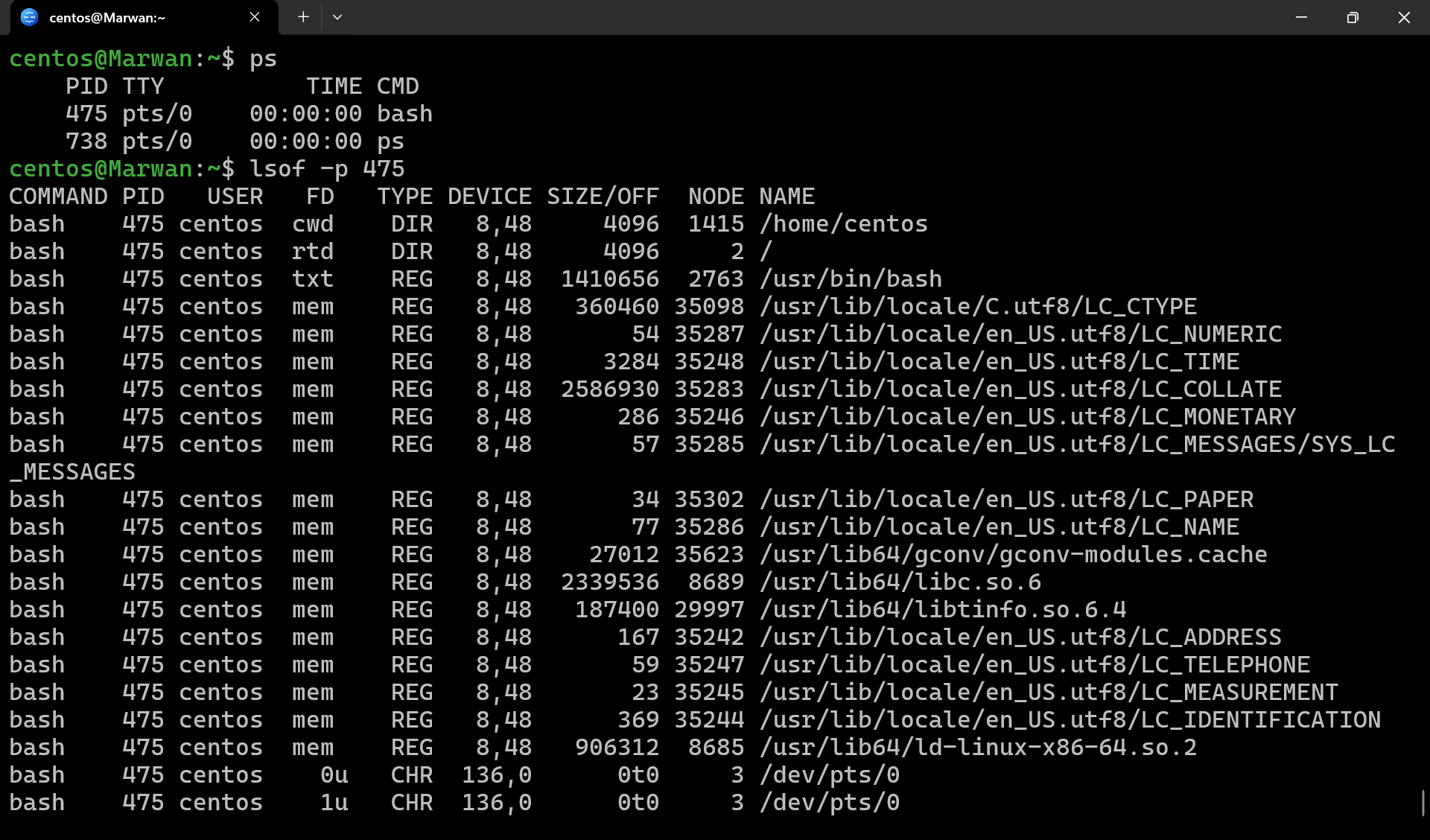
lsof -p <pid>→ open files
Killing & Managing Processes
-
Kill by PID:
kill -9 1234 -
Kill by name:
pkill firefox # Kills processes by name, useful for killing a single instance.
killall firefox # Kills all processes with the specified name.
Hands-on:
sleep 300 &             # start process
kill -STOP <PID>        # pause it
kill -CONT <PID>        # resume it
kill -TERM <PID>        # ask nicely to stop
kill -9 <PID>           # force stop
Detaching & Persistent Processes
- nohup
nohup python script.py &(survives terminal exit, output goes to
nohup.out)-
tmux / screen
-
Persistent terminal multiplexer
-
Detach/reattach later
-
Process Priorities
Linux uses nice values (
-20= high priority,19= low).nice -n 10 command # start with lower priority renice -n 5 -p 1234 # change priority of PID 1234Process States (as seen in
ps)Code State Meaning R Running Actively using CPU S Sleeping Waiting for event T Stopped Suspended (Ctrl+Z / STOP signal) Z Zombie Finished but parent not cleaned up D Uninterruptible Waiting on I/O Examples
kill -SIGTERM 1234    # ask process 1234 to terminate
kill -9 1234          # force kill
killall -HUP nginx    # reload nginx config
Rule of thumb: try SIGTERM before SIGKILL.
Scheduling & Priorities (nice & renice)
Linux allows you to control how much CPU time a process gets using niceness values.
-
Niceness range: -20 (highest priority) to +19 (lowest priority)
-
Default is
0
Start with a nice value
nice -n 10 myscript.shRuns with lower priority → it won’t hog the CPU.
Adjust a running process
renice -n -5 -p 1234Raises priority of PID 1234.
- Only root can assign negative nice values (higher priority).
Monitoring System Load
uptimeShows how long the system has been running + load averages.
uptime # 21:42:33 up 2 days, 4:21, 3 users, load average: 0.58, 0.72, 0.65-
Load averages = CPU demand over last 1, 5, and 15 minutes.
-
Rough rule:
-
Load ~ number of CPUs = healthy
-
Load > CPUs = system under pressure
-
topReal-time view of CPU, memory, and processes.
top-
Press
P→ sort by CPU usage -
Press
M→ sort by memory usage -
Press
k→ kill a process by PID
htop(nicer interface, if installed)htop-
Interactive → arrows to navigate,
F9to kill -
Shows colored bars for CPU, memory, swap
-
Easier to spot resource hogs
With these, you now have a complete picture of process management:
-
Foreground/background jobs
-
Signals
-
Priorities & scheduling
-
Monitoring system load
Visual Workflow Cheatsheet
Start process → Foreground
     │
     ├── Ctrl+Z → Stopped
     │        ├── fg %n → Foreground
     │        └── bg %n → Background
     │
     ├── & → Background
     │        └── disown/nohup → Detached
     │
     ├── kill -STOP PID → Paused
     │        └── kill -CONT PID → Resume
     │
     └── kill -TERM PID → Graceful End
              └── kill -9 PID → Force Kill
Exercises
-
Run
yes > /dev/null &(CPU-heavy job).-
Use
topto see CPU usage. -
Pause it with
kill -STOP. -
Resume with
kill -CONT. -
Kill it with
kill -9.
-
-
Start a background job, then log out. Does it survive?
- Try again with
nohuportmuxand compare.
- Try again with
-
Run
sleep 500with different nice values (-20,0,19).- Use
topto observe priorities.
- Use
With this, you now know:
-
How to manage jobs in your shell
-
How to control any process system-wide
-
How to use signals, priorities, and persistent tools
Close-up
Managing processes and keeping an eye on system performance is at the heart of
Linux administration. From sending signals with kill to watching resource
usage in real time with top, you’ve seen how Linux gives you complete control
over what’s running on your system. Monitoring tools like ps, htop, and
watch help you stay proactive, ensuring that issues are spotted before they
escalate. Master these, and you’ll move from simply running commands to truly
orchestrating your system like a conductor leading an orchestra.
Up Next: Automation with Cron
Ready to automate? Learn how to schedule tasks: